
Grims Chests — Player Wiki
Version 0.4.10 · Paper 26.3 · Java and Bedrock
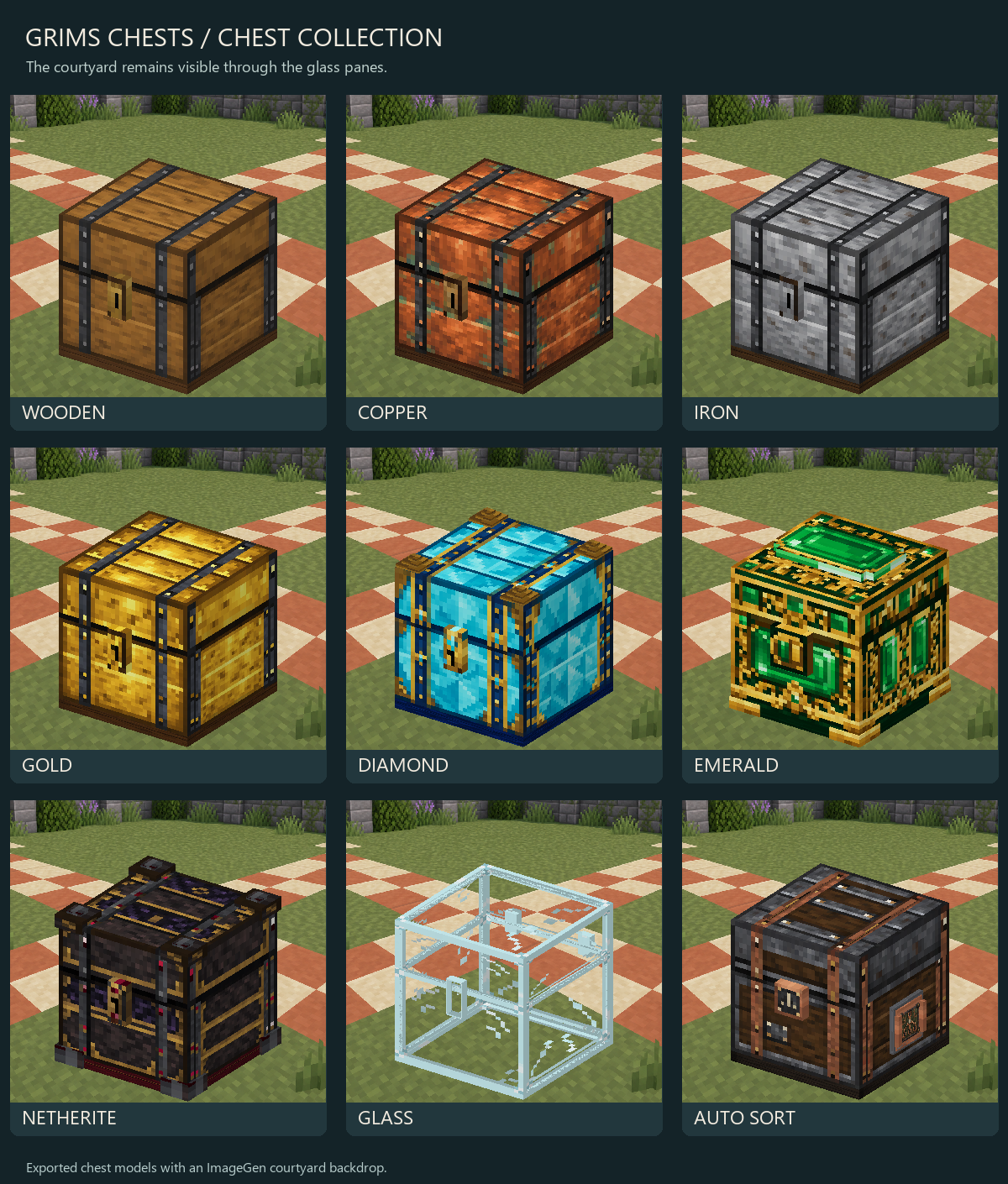
Grims Chests lets you keep several double-chest inventories inside one placed chest. Each upgraded storage chest also has a separate 27-slot physical inventory for hoppers.
A Grims Chest holds up to six shulker boxes. One shulker box carries a whole inventory inside a single stack, so a chest full of them holds thousands of items at once and becomes slow and risky to save. Six is the default limit for a whole placed chest: keep them all in one sub-chest or spread them out, whichever you like. The seventh is refused and handed straight back to you. Your server can change that number.
A Void Chest holds none at all. It is far too big for boxes of boxes. Any that are already inside stay there and can be taken out as usual.
Shulker boxes that are already inside any chest are never taken away from you: you can see them, open them and take them out as normal. The chest's 27 physical slots are a normal chest and accept anything.
Wiki home · New Chests Wiki · Admin Wiki
On this page: Getting started · Recipes and capacity · Opening storage · Filters and names · Auto Sort Chest · Glass displays · Moving and carrying · Commands · Help
Getting started
- Craft an ordinary vanilla chest.
- Put it in the center of a crafting table and surround it with eight planks to make a Double Chest.
- Place it and interact to open its 54-slot storage. Crouch-interact to open its separate 27 physical slots.
A Grims Double Chest occupies one block. Ordinary vanilla chests and vanilla two-block double chests keep their normal behavior.
Recipes and capacity
Each storage upgrade uses the previous chest item in the center of a crafting table. If it is already placed, move it with an issued Chest Wrench first.
| Make | Center item | Other ingredients | Sub-chests | Sub-chest slots |
|---|---|---|---|---|
| Double | Vanilla Chest | 8 planks | 1 | 54 |
| Copper | Double Chest | 3 top-row planks + 5 copper ingots | 2 | 108 |
| Iron | Copper Chest | 8 iron ingots | 3 | 162 |
| Gold | Iron Chest | 8 gold ingots | 4 | 216 |
| Emerald | Gold Chest | 8 emeralds | 5 | 270 |
| Diamond | Emerald Chest | 8 diamonds | 6 | 324 |
| Netherite | Diamond Chest | 1 netherite ingot | 8 | 432 |
| Glass | Netherite Chest | 2 netherite ingots + 6 glass blocks | 9 | 486 |
| Void | Glass Chest | Void Heart: 4 shulker shells, 2 nether stars, 2 Dragon's Breath | 45.5 (45 double + 1 single) | 2,457 |
Every upgraded storage chest adds 27 physical slots to the capacity above. Void is the highest tier: 45 double chests, one single chest, and the physical inventory.
The Void Heart uses this arrangement. Your server may swap the Dragon's Breath for End Crystals.
Shulker Shell    Nether Star   Shulker Shell
Dragon's Breath  Glass Chest   Dragon's Breath
Shulker Shell    Nether Star   Shulker Shell
For recipes with eight surrounding ingredients, fill the outer ring. Netherite uses one ingot in any outer slot and leaves the other outer slots empty. Glass uses two ingots anywhere in the ring, with glass blocks in the other six positions.
Copper requires this arrangement:
Plank     Plank          Plank
Copper    Double Chest  Copper
Copper    Copper        Copper
Mixed vanilla plank types work. Glass accepts clear and stained glass blocks, including mixed colors; panes and tinted glass do not work.
Use a normal crafting click with an empty cursor. Craft one chest at a time; shift-click and automated Crafter production are disabled. Upgrading keeps your existing stored items, sub-chest names and icons, and the chest's shared filter. Newly unlocked sub-chests use that filter too.
Opening storage
| Action | Upgraded storage chest | Auto Sort Chest |
|---|---|---|
| Normal interact | Double opens its one sub-chest; Copper and above open a selector | Opens the 27-slot sorting input |
| Crouch-interact | Opens the physical 27-slot inventory | Starts or ends link mode |
Look at chest and use /gch menu |
Opens the selector, including on Double | Opens sorter settings |
All 54 slots inside a sub-chest are usable storage. Close it and interact again to select another sub-chest. Higher tiers also have a Physical inventory (27) button.
Hoppers use only the physical inventory. Putting items there does not automatically send them into that chest's sub-chests. Use the separate Auto Sort Chest for sorting.
Phone and tablet players get touch menus automatically when the server runs Grims Client Checker. Java and Bedrock controller/keyboard players keep standard menus. Pick for yourself with /gcc menu chests mobile, classic or auto. Touch menus use explicit page buttons; storage capacity stays the same.
The Void Chest's menu shows only its 46 chests. Standard players see them all on one page. Touch players see a seven-column grid: chests 1–35 with Next page on the bottom row, then chests 36–46 with Back below them. Crouch-interact still opens its physical inventory. Look at it and use /gch settings to configure it.
Jack-in-the-Box Chest
A Halloween chest that only administrators can give. It starts as a Double Chest, upgrades through every tier like any other chest, and always keeps its Jack-in-the-Box look. When anyone opens it, everyone nearby sees the crank turn, the lid flaps burst open and the pumpkin-headed jack spring up and sway until it's closed. Powering it with redstone (a lever, button, pressure plate or dust) makes it pop without opening it. After the power goes off it waits a short cooldown (2.5 seconds by default) before redstone can pop it again, so flicking a lever can't spam the animation.
Christmas Toy Chest
A Christmas chest that only administrators can give, with the same rules as the Jack-in-the-Box: it starts as a Double Chest and keeps its look through every upgrade. It's a red toy chest with a green lid and bow, wrapped in garland with twinkling string lights. When anyone opens it, nearby players see the lid swing up and a decorated tree spring out, its star lit, swaying until it's closed. Redstone opens it the same way without opening the chest, with the same cooldown.
Vouchers
Administrators may hand out vouchers instead of the command-only items, for example as loot-crate prizes. Hold a voucher and right-click in the air or on a block: it turns into its item in your hand (a Jack-in-the-Box Chest, Christmas Toy Chest, Chest Wrench, Display Remote or Sorting Core). Vouchers don't stack, and they can't be used as paper in any recipe.
Every chest makes the vanilla chest open and close sounds. Redstone pops are silent.
If a chest says it's locked
The plugin locks chests rather than risk your items. Two messages mean an administrator needs to look:
- "Chest storage is locked after an error." The database itself failed. Every chest is locked until an administrator clears it, and nothing is lost.
- "This chest is held for inspection after an error." That one chest stopped — every other chest still works normally. Its contents are safe, and an administrator can release it.
Tell your server staff either way. They have the details in the console.
Filters and names
Owners and trusted managers can configure a chest. Server protection rules still apply.
Each upgraded storage chest has one auto-sort filter for all its sub-chests. A Glass Chest's one filter can fill all nine 54-slot inventories. Copper uses the same rule across two, and other tiers use all the sub-chests they have unlocked. The physical 27-slot inventory is excluded.
- Look at the chest and use
/gch settings, or choose Configure from its selector. - Choose Auto-sort filter.
- Select and save the rule for the whole chest.
| Rule | What it accepts from an Auto Sort Chest |
|---|---|
| Categories | Items in one or more chosen vanilla categories |
| Exact item | Items matching the held sample, including its item details |
| Accept remaining items | A catch-all for items left after exact and category matches |
| Disable auto-sort input | No automatic transfers into any of this chest's sub-chests |
For categories, select your choices and press Save categories. Several selected categories form one shared rule. Exact-item, catch-all, and disabled input are alternative modes. Exact-item, catch-all, and filter-clearing menu changes use confirmation buttons. Your sample item is kept.
New storage chests have sorting input disabled until you choose a rule. Filters control automatic transfers; you can still put items into any sub-chest manually. Changing a filter does not remove stored items. Select an individual sub-chest in settings to change its name or decorative icon; neither changes the shared filter.
Default categories are Building Blocks, Colored Blocks, Natural Blocks, Functional Blocks, Redstone, Tools and Utilities, Combat, Food and Drinks, Ingredients, and Spawn Eggs. Servers may customize them. Categories match vanilla items; use exact-item filters for custom items.
Example: look at a Glass Chest and run /gch filter building,colored. All nine sub-chests can now receive those categories from a linked sorter. Use /gch rename 1 Building supplies to name the first sub-chest separately.
If an older chest reports that its filter needs review after updating, choose and save a shared rule here. Its items stay safe and manually accessible while automatic input is paused.
Auto Sort Chest
The Auto Sort Chest is separate from the storage tier ladder. It has a 27-slot input and no sub-chests of its own.
Craft it
Ask an administrator for a Sorting Core. The core is admin-issued only and has no crafting recipe.
Combine these three items anywhere in either your personal crafting grid or a crafting table:
1 Sorting Core + 1 finished Crafter block + 1 vanilla Chest
Craft the Crafter first using its vanilla recipe; the finished block is the ingredient. Ordinary or renamed paper cannot replace the core. Use a normal click with an empty cursor to make one sorter.
Link it
- Place the sorter and configure one shared filter in each destination storage chest.
- Crouch-interact with the sorter, or look at it and use
/gch link. - Interact with a destination chest and choose Confirm link.
- Repeat for more destinations.
- Crouch-interact with the same sorter again, or use
/gch link cancel, to finish.
You must be allowed to manage the sorter and its destinations. Selecting an already linked chest offers Confirm unlink.
By default, a sorter supports 16 destinations inside a 64×64×64 area centered on it: up to 32 blocks away on each axis, in the same world. Link mode expires after 60 seconds without a successful link change. Your server may change these limits.
Sort items
Open the sorter, deposit items, and close it. Sorting starts after the final viewer closes, provided that player can manage the sorter and the destinations.
The sorter tries exact-item matches first, categories second, and catch-all last. Within a matching storage chest it fills sub-chest 1, then 2, and continues through every unlocked sub-chest. If that chest fills, it tries another matching linked chest. Destinations must be placed, loaded, in range, and available. Their physical 27 slots never receive sorted items.
Only successfully transferred items leave the sorter. If sub-chest 1 has room for 40 of your 64 logs, the other 24 continue into sub-chest 2. If only 40 fit across all matching destinations, 24 remain in the input. Unmatched items also stay there.
Hoppers can fill the sorter, but do not trigger sorting. An authorized player must open and close it afterward. A guest's close does not trigger a batch.
Glass displays
Glass Chests can show items from one selected sub-chest, cycling through them one at a time.
- Open the Glass Chest's selector and choose Choose display source.
- Select the sub-chest to display.
- Hold an administrator-issued Display Remote in your main hand.
- Interact with the Glass Chest, or left-click it, to switch the display on. Use the remote again to switch it off.
The owner, a trusted manager, or an administrator chooses the source. You also need the server's display permission to use the remote. Choosing a source while the display is off leaves it off; changing the source while it is on keeps it on.
By default, each occupied slot is shown for three seconds, within a viewing distance of 32 blocks. Empty slots are skipped. An empty source shows nothing until it has items. The display is only a preview: players and hoppers cannot collect it, and the stored stack stays intact.
Moving or placing a Glass Chest always turns its display off. Its chosen source remains saved. Use the remote to turn it on again after placement. A chest left in place can keep its on/off setting through a normal restart.
The remote toggles Glass displays only. It does not move chests or lock nearby storage. Put it away before interacting normally to open a chest menu. Your server may disable displays or adjust their height, item-change timing, and viewing distance.
Moving and carrying
Move a placed chest
Only an authentic Chest Wrench can move plugin chests. Administrators issue it; there is no wrench recipe. Some servers keep wrenches with staff.
- Empty the physical inventory first if you want to avoid collecting its contents from the ground.
- Leave a normal inventory slot free and hold the wrench in your main hand.
- Use the break action once on a chest you may manage—left-click on mouse controls.
- The chest item goes directly into your inventory after its storage has been saved.
- Collect any physical contents dropped at the old location, then place the chest item at its new location.
Sub-chests, their contents, and settings move with the chest. Its new physical inventory starts empty. This also applies to moving an Auto Sort Chest: its input contents drop.
Wrench lock
Holding a wrench in either hand locks plugin chests within 15 blocks by default, including access by the person holding it. Open inventories close, and hopper transfers and sorting pause. Put the wrench away when you finish.
A mobile form may remain visible after a lock; dismiss it and reopen after the wrench is put away. Its old buttons cannot operate the locked chest.
Carrying rules
Carried plugin chests stay in your player inventory, hotbar, offhand, or temporary cursor. They cannot be stored inside chests, shulkers, barrels, bundles, backpacks, or other containers, even when empty. Manual dropping is blocked.
Carrying a loaded Iron, Gold, Emerald, Diamond, Netherite, Glass, or Void Chest reduces movement to 70% of normal speed by default. Carrying more loaded chests does not stack the penalty. Empty chests, Double, Copper, and Auto Sort do not slow you down.
Chest items are kept through death. If a saved chest needs to be returned, free a normal inventory slot and use /gch recover. The same command helps if closing a menu or crafting table left no room to return a carried chest.
If a move stops with an inspection or recovery warning, keep any chest item you received and contact staff.
Commands
Use these while looking at a placed chest within six blocks, except recover and link cancel. Sub-chest numbers start at 1.
| Command | Use |
|---|---|
/gch menu |
Open the chest selector |
/gch settings |
Configure the chest |
/gch rename <sub> <name> |
Name a sub-chest |
/gch icon <sub> <material> |
Set its icon, such as DIAMOND_ORE |
/gch filter <category[,category]> |
Set the whole chest's categories, such as building,colored |
/gch filter exact |
Use the item held in your main hand as the whole chest's exact filter |
/gch filter remaining |
Enable catch-all for the whole chest |
/gch filter none |
Disable automatic input for the whole chest |
/gch link |
Start or toggle sorter link mode |
/gch link cancel |
End link mode |
/gch trust <online-player> |
Let a player manage this chest |
/gch untrust <online-player> |
Remove that management access |
/gch recover |
Return eligible saved chest items |
Configuration and trust changes require management access. Commands apply their changes immediately. The older /gch filter <sub> <rule> form still accepts a valid sub-chest number, but changes the whole chest's filter and tells you so. Trust gives management rights; your server's claim and container rules control normal access.
Help
| Problem | What to check |
|---|---|
| A chest will not open | Put nearby wrenches away, move closer, clear anything blocking its lid, and check protection permissions. |
| The sorter leaves items behind | Check links, shared filters, free space, range, loaded destinations, and management access. Resolve any filter-review notice, then open and close it again. |
| Hopper-fed items are not sorting | Hopper input alone does not start sorting; an authorized player must open and close the sorter. |
| The remote does nothing | Select a source in a Glass Chest, use the genuine main-hand remote, and check access with staff. |
| The display is on but empty | Put items in the selected sub-chest and check viewing range. A wrench lock or Bedrock physical/control menu can temporarily hide previews. |
| Displayed items sit too high or change too slowly | Ask staff to adjust the display height or item-change interval in the plugin configuration. |
| A tool looks right but does not work | Only plugin-issued tools and cores work. Renaming paper or obtaining an asset preview does not grant its function. |
| A chest briefly shows a vanilla chest underneath | This can happen during model updates or while a Bedrock physical/control inventory is open. |
| An item is missing after a refused move or full inventory | Free space and try /gch recover; contact staff if the chest is guarded for inspection. |
For pack, permission, or recovery problems, ask staff to use the Admin Wiki.
Where shulker boxes go
Shulker boxes go in the physical slots, not in sub-chests. Every upgraded chest has two separate kinds of space:
| How you open it | Shulker boxes | |
|---|---|---|
| Physical inventory (27 slots) | Crouch-interact with the chest | Yes — put them here |
| Sub-chests (54 slots each) | Normal interaction | No — never |
The physical inventory is an ordinary vanilla chest and takes anything, shulker boxes included. That is the one place in a Grims Chest a box can live.
A sub-chest will not keep one. A shulker box carries a whole inventory inside a single stack, so a sub-chest full of them holds thousands of items at once and becomes slow and risky to save. Put one in and it is handed straight back — however you try it, including your client's own sort or auto-move buttons.
A box already in a sub-chest comes back to you when you close it. Nothing is taken while you are looking at it: open the sub-chest and the box is still there to move around or take out yourself. It is the moment you close it that the box leaves and goes to your inventory. Chests you never open are left alone. If you want to keep it in that chest, crouch-interact and drop it in the physical slots instead.
If your inventory is full, nothing is lost. Whatever does not fit is held for you. Make some room and run:
/gch shulkersand you get back as many as fit, with a message saying how many are still waiting. They are never dropped on the floor for someone else to grab, and they are never destroyed — they wait as long as you need.
One warning if you use the physical slots as shulker storage: moving the chest with a wrench drops the physical contents on the ground at the old spot. Empty them first, or pick them up afterwards. Sub-chest contents travel with the chest; physical contents do not.
Wiki home · New Chests Wiki · Admin Wiki
On this page: Getting started · Recipes and capacity · Opening storage · Filters and names · Auto Sort Chest · Glass displays · Moving and carrying · Commands · Help